
Stop babysitting fragile automations

Most automation looks impressive until the first exception. Opti-Terrain is built for what happens next.

The routine automations are already built into the field-service workflow. Owners configure timing, eligibility, capacity, communication, and approval rules. Opti-Terrain completes supported routine steps, prepares reasoned options before risky changes, and keeps the outcome visible.
Done-for-You Automations in Opti-Terrain
Owner controlRules and results stay visible
01Prebuilt automations across lead, schedule, job and invoice stages02Owner-set rules instead of a blank workflow canvas03Routine actions execute while risky date changes wait for approval04Reasons, notices and outcomes remain visible in the records

What no longer has to depend on memory

The safeguards that keep this work moving when attention has to move elsewhere.

01

Move new work to the right path

Built-in intake logic can route an eligible request to instant quoting, an assessment or outside-area handling using your rules.

02

Keep quotes from going quiet

Configured expiry and follow-up timing can prepare and send the supported reminders already built into the quote workflow.

03

Prepare the day automatically

Appointment reminders, recurring-job creation, eligible auto-assignment and dispatch notices use the policies you turn on.

04

Recover from crew changes

Crew-out and PTO workflows can find affected work, prepare recovery choices and surface the impact before commitments change.

05

Respond to weather with approval

Weather logic can identify affected work and propose changes, while customer date changes remain held for owner approval.

06

Finish the follow-through

Configured reschedule follow-ups, escalation timing, satisfaction requests and invoice-draft creation keep the next step from relying on memory.

What Opti-Terrain handles and where you stay in control

Your rules move the routine work. Real decisions come back to you.

Every major workflow makes five things visible: what starts it, which rules apply, what Opti-Terrain completes, when it stops and asks, and where you can verify the result without reconstructing the process.

01
Trigger

A supported event occurs, such as a new request, quote expiry, upcoming visit, crew absence, weather risk, completed job or unanswered reschedule.

02
Rules

You set thresholds, timing, eligibility, service area, capacity, assignment, message and approval policies. You are configuring built-in operations, not programming them from scratch.

03
Opti-Terrain does

Opti-Terrain executes the safe routine action or prepares a reasoned recovery option with the affected records and customer impact attached.

04
When it asks

It asks before a risky schedule commitment, ambiguous assignment, exceptional price or other judgment call crosses the guardrails you set.

05
Where you see it

See what happened and why in the affected quote, job, schedule, disruption record, notification history and audit trail.

Painter and plumbing technician working inside a bright home
Interior trades

From office to field

The context travels with the work.

The same request, schedule, customer details, photos, notes, status, and next action stay available as work moves from the office to the site.

Do predictable work. Bring me decisions.

Do not give the owner another reminder. Complete the supported routine step.

These automations already exist as workflows. You choose the timing, eligibility, thresholds, messages, and approval boundaries. Opti-Terrain completes the configured routine action, then returns anything that needs judgment without hiding the reason.

01

Request routing

Starts when
A customer submits a public intake form.
Rules you set
Trade mode, instant-quote override, service area, residential or commercial path, catalogue prices, and assessment fee.
Opti-Terrain handles
Qualifies the request, prepares a priced quote for supported work, creates an assessment request when a visit is needed, or gives an outside-area response.
Your control
Complex scope and unsupported work remain available for office review. The route and resulting record stay visible.
02

Quote follow-up and expiry

Starts when
A sent quote reaches its configured follow-up or validity date.
Rules you set
Follow-up delay, validity period, customer language, and enabled communication channels.
Opti-Terrain handles
Sends one bilingual follow-up and closes the acceptance path after the configured validity window.
Your control
The owner chooses the timing and can see the quote status, history, and customer response.
03

Appointment reminders

Starts when
A scheduled visit enters the configured reminder window.
Rules you set
On or off, lead time in hours, customer language, and available email or SMS channel.
Opti-Terrain handles
Sends the reminder once and records that it was handled so routine runs do not duplicate it.
Your control
The business chooses the timing and can turn the workflow off.
04

Recurring work

Starts when
A completed recurring job reaches its next service date.
Rules you set
Weekly, biweekly, monthly, quarterly, or annual recurrence and the job details carried forward.
Opti-Terrain handles
Creates the next job in a guarded workflow so the same recurrence is not created twice.
Your control
The next job appears in the normal job and schedule records for office review.
05

Draft invoice preparation

Starts when
A job linked to an accepted quote is marked complete.
Rules you set
The business turns automatic draft creation on or off.
Opti-Terrain handles
Copies the accepted commercial details into a linked draft invoice.
Your control
Opti-Terrain never sends that invoice automatically. The office reviews and chooses when to send it.
06

Crew-out and PTO recovery

Starts when
A technician reports unavailable or approved time off changes the shift.
Rules you set
Minimum notice, customer self-service setting, eligible service type, shifts, capacity, and replacement availability.
Opti-Terrain handles
Reassigns only eligible routine work when a safe replacement exists, or prepares a customer reschedule path when the configured conditions are met.
Your control
Diagnostic, emergency, project, installation, and unclear work stay owner-handled. Reasons and outcomes remain visible.
07

Weather recovery proposals

Starts when
The zone forecast flags a configured weather risk in the next five days.
Rules you set
Weather-sensitive service, actual zone city, existing commitments, future capacity, and technician eligibility.
Opti-Terrain handles
Prepares a future date and technician option while preserving the local appointment time when possible.
Your control
Opti-Terrain never applies the date change silently. The owner approves before the customer is notified.
08

Customer reschedule lifecycle

Starts when
An eligible disrupted job receives a secure rescheduling link.
Rules you set
Exact current availability, minimum notice, protected service types, and a 24-hour response window.
Opti-Terrain handles
Shows valid slots, revalidates the selected time before committing, follows up after 2 hours, escalates after 4 hours, and expires the request after 24 hours.
Your control
The owner sees the request state and takes over when the customer does not respond or the work requires judgment.
09

Satisfaction follow-up

Starts when
A completed job enters the post-service follow-up window.
Rules you set
Customer language and an available configured communication channel.
Opti-Terrain handles
Sends one bilingual rating request between 2 and 4 hours after completion.
Your control
The rating is attached to the job. Opti-Terrain does not turn it into a public testimonial.
10

Arrival and status updates

Starts when
A technician changes a supported field status, including going on route.
Rules you set
Notification preferences, arrival buffer, customer language, and connected channel.
Opti-Terrain handles
Calculates an ETA with Google Routes when available, prepares a protected tracking link, and sends the configured update.
Your control
The customer sees status and ETA, not live GPS. The office sees the same job and dispatch context.

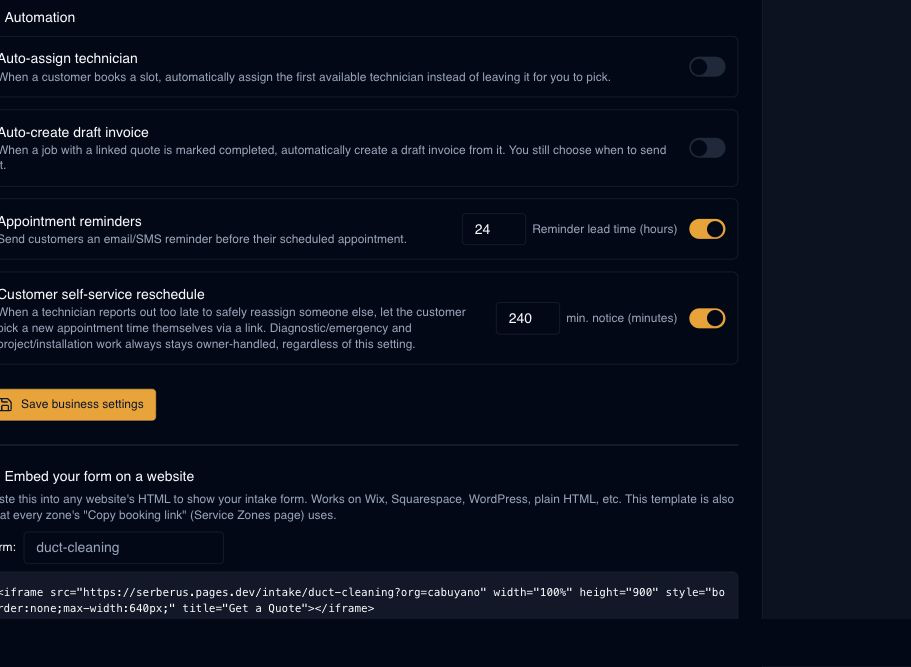
Real product screen

Proof that the protection is in the product, not just the promise.

This image comes from the current Opti-Terrain application. Interface details may evolve, but the workflow shown here is part of the product surface audited for this site.

Done-for-You Automations product screen
Opti-Terrain / Done-for-You Automations

Opti-Terrain

This workflow should not stop because you got busy.

Opti-Terrain keeps supported repeatable work moving, brings exceptions back before damage is done, and keeps the result visible.

Create your account